Indicator Match Rules
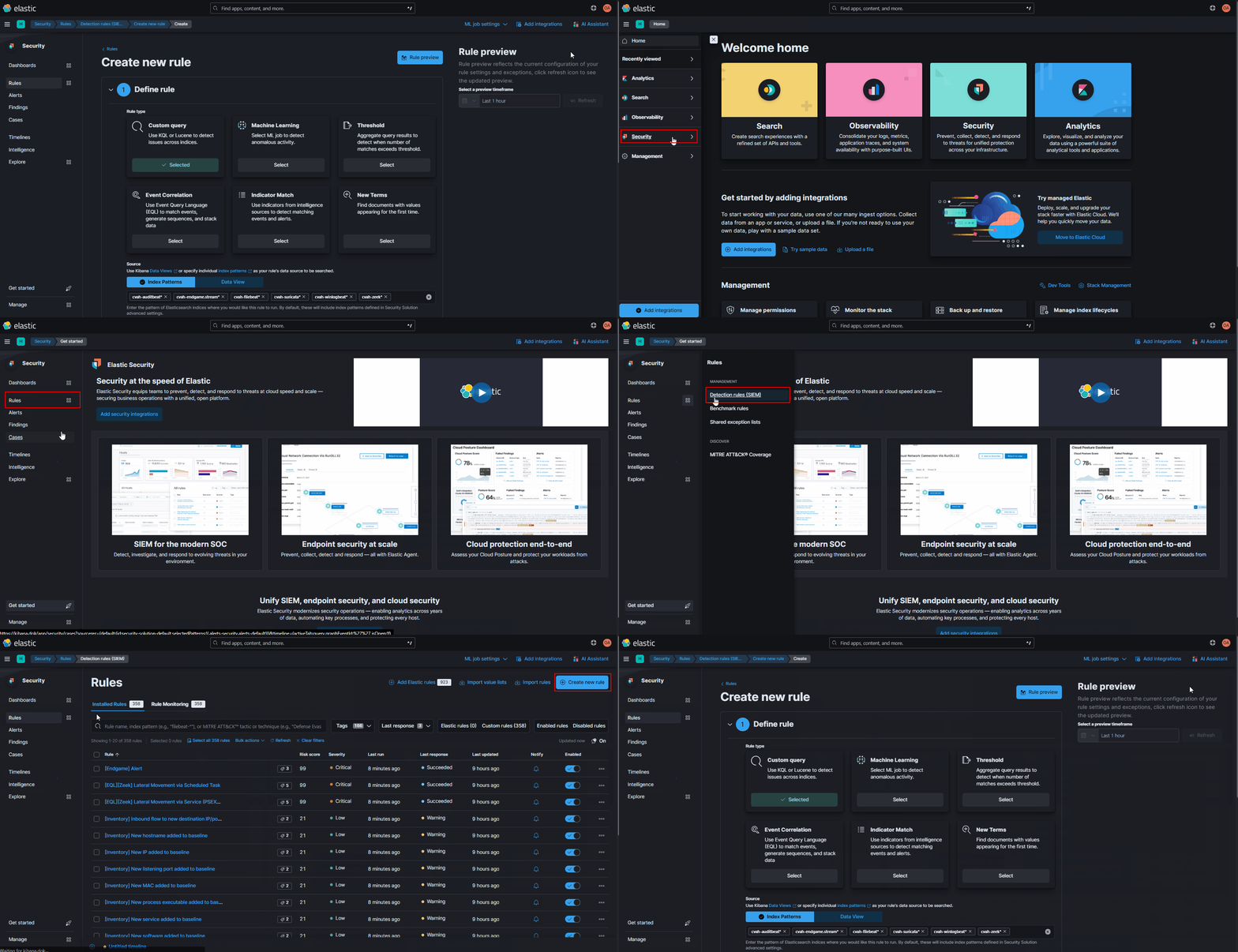
STEP 1: Navigate to Rule Management
-
Expand the left-hand menu and navigate to the Security app
-
Click on the
Rulesbutton under the Security app -
Click the
Detection rules (SIEM)option from the Rules section
STEP 2: Import "Value List(s)"
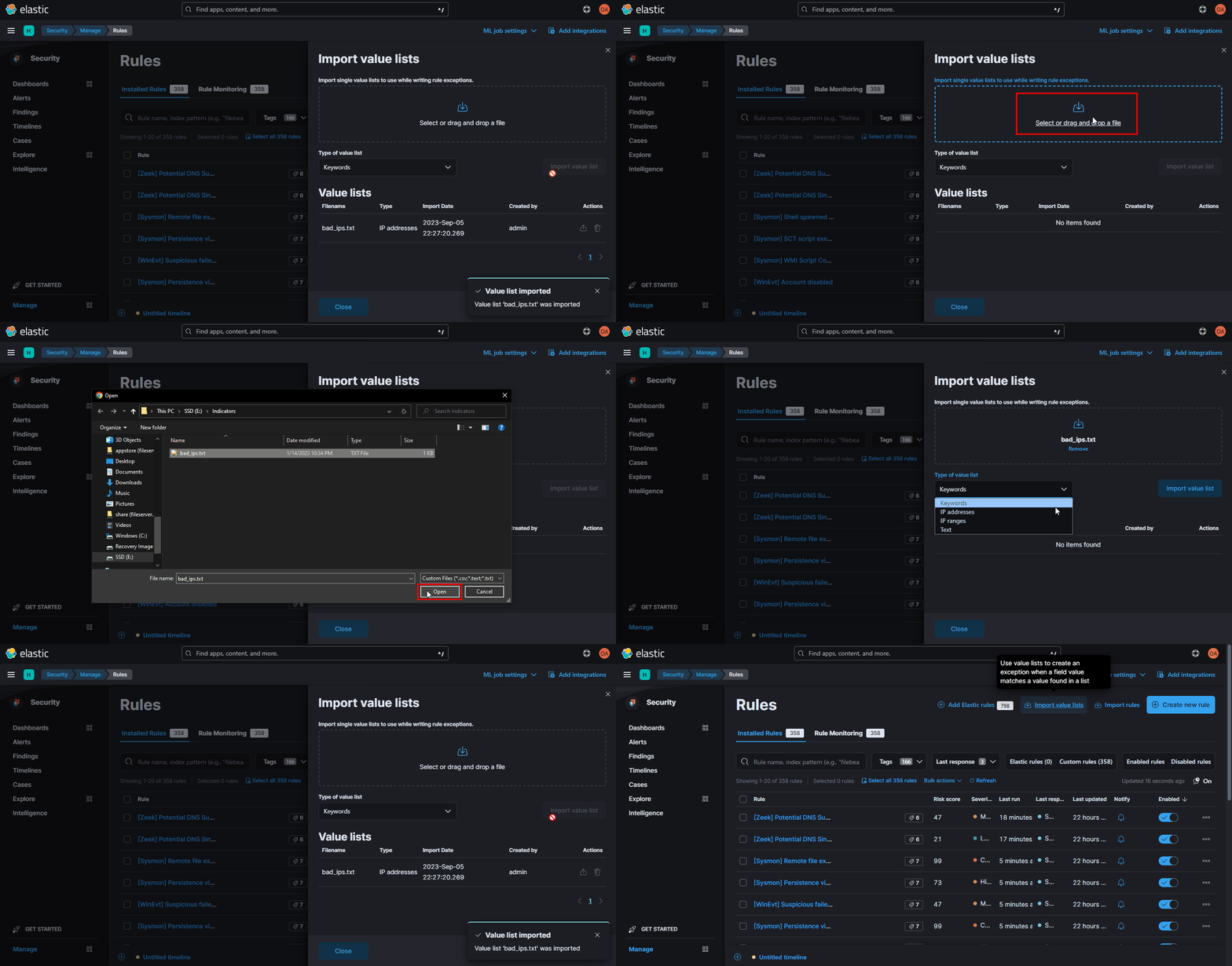
Indicator Match rules require the additional step of importing a Value List (a list of IOCs) before creating the rule. A Value List is just simple file containing strings, IPs, or network CIDRs (1 item per line).
-
Click on the
Manage value listsbutton in the top-right corner of the Rules page -
Upload a simple indicator list (1 item per line) text file of keywords (like URLs, hashes, filenames, or any other string), IP addresses, or IP ranges.
NOTE: Each indicator list text file must contain the same types of indicators (for example: no mixing URLs with Hashes, etc.)
-
Repeat these upload steps for each type of indicator you have
STEP 3: Create the Rule
-
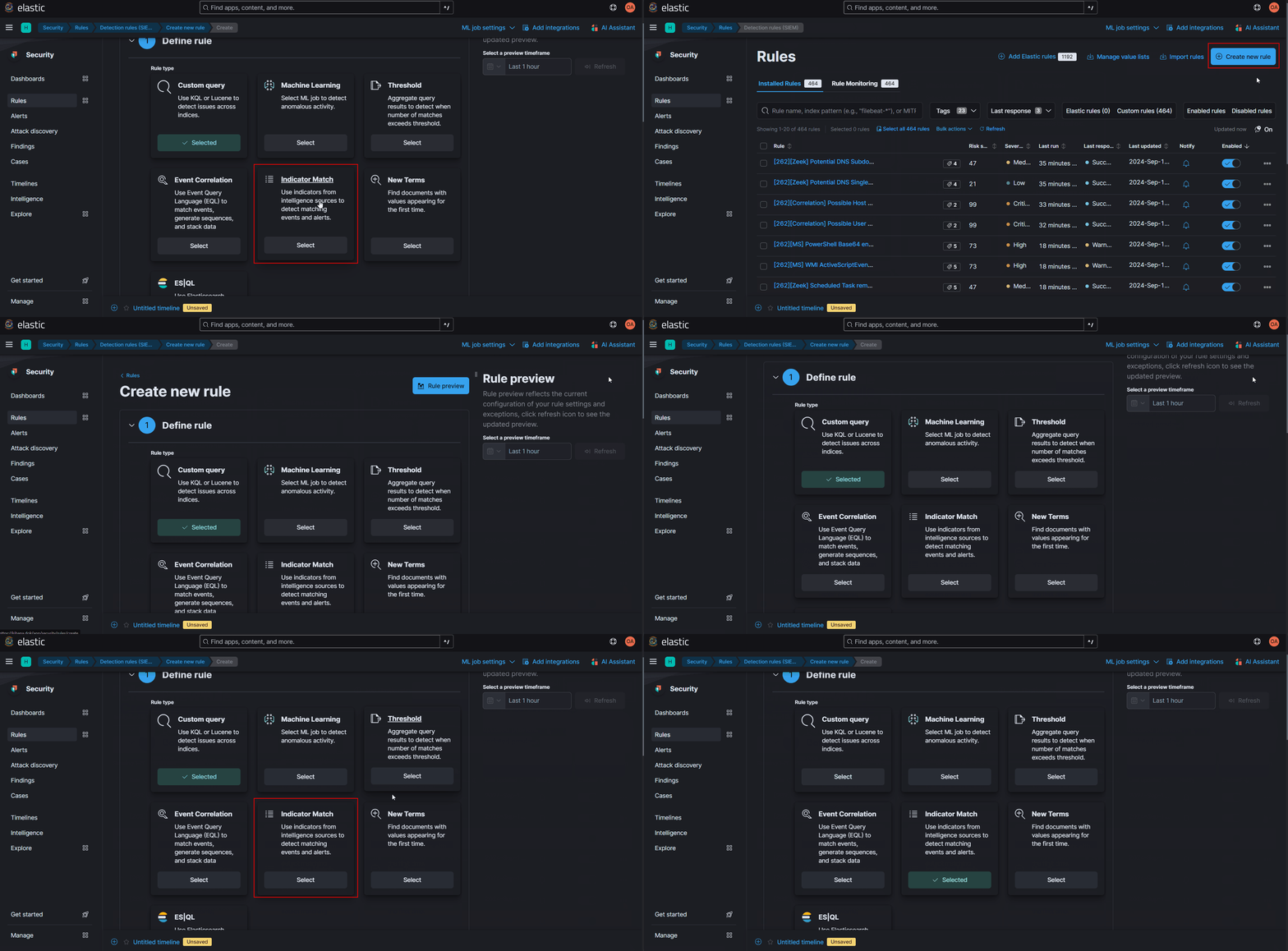
Click on the
+Create new rulebutton in the top-right corner of the Rules page -
Select the
Indicator MatchRule type
(1) Define Rule
-
Source: Leave default index patterns as-is or select the specific data source(s) that the query will be ran against to make the rule more efficient.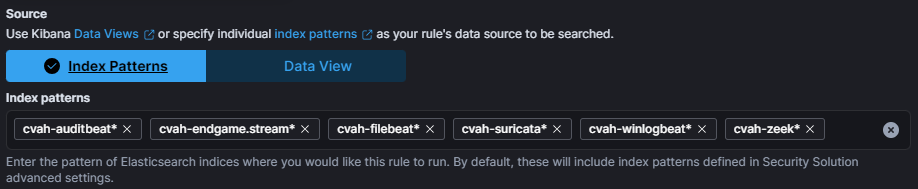
-
Custom query: Leave the default*:*query, or input a query that will filter for the specific logs that you want to alert on. -
Indicator index patterns: LEAVE THIS SET TO THE DEFAULT.items-default*
-
Indicator index query: Set this tolist_id:"<LIST_FILENAME>"- to specify that referenced value list will be file you imported (replacing<LIST_FILENAME>with the actual filename)noteThe default Indicator index query (
@timestamp >= "now-30d/d") tells the rule to look at all value lists that were uploaded within the last 30 days – useful for aging out old IOC lists. Settinglist_idexplicitly targets the specific file you uploaded regardless of age.
-
Indicator mapping: Match the Field that you want to search against with the Indicator index field (keyword,ip, orip_range) depending on the type of indicator list uploaded. tip
tipThe following table lists the most common indicator types and the fields they are best mapped to for detection.
IOC Type Field Description IP Address related.ip(ip/ip_range)IP addresses observed in network connections, DNS requests, or anywhere else Hash related.hash(keyword)Any type of file hash observed anywhere (from log sources that already have a hash generated) Hostname/FQDN related.hosts(keyword)Any hostname or FQDN observed in host logs, network connections, or DNS requests Email related.email(keyword)Any email address Filename related.file.name(keyword)A file name, such as example.pngFilepath related.file.path(keyword)A full file path, such as /home/alice/example.pngUsername related.user(keyword)A username observed in any username type field Registry* registry.key(keyword)A registry key path (without the hive or value name)*, such as SOFTWARE\Microsoft\Windows NT\CurrentVersion\Image File Execution Options\winword.exeRegistry* registry.path(keyword)A full registry path (including the value name)* in the format <HIVE>\<PATH_TO_KEY>\<VALUE_NAME>, such asHKLM\SOFTWARE\Microsoft\Windows NT\CurrentVersion\Image File Execution Options\winword.exe\DebuggerRegistry* registry.data.strings(keyword)The exact content of any REG_SZ,REG_EXPAND_SZ, orREG_MULTI_SZregistry keyURL url.original(keyword)A full URL (including the FQDN, URI, and parameters), such as https://www.elastic.co:443/search?q=elasticsearch#topURI url.path(keyword)Any URI, such as /search -
Optional - To test the rule logic, use the Rule Preview feature at the top of the page.
NOTE: This requires that there are recent logs with data that will match your indicators
(2) About Rule
When naming the rule, be descriptive about what is generating the rule (data source) without being too verbose - long rule names get truncated when alerts trigger.
- Example:
[262COS][IOC] Known-bad IP Observed
Fill each of the following fields:
-
Name: A short descriptive title for the rule -
Description: Be verbose, as this is the first thing an analyst investigating the alert will look at to understand why the event is worth investigating -
Default severity: Set based on your assessment of the activity that the rule is trying to detect:Value Description LowMost likely to be a false positive or benign activity. Has minimal impact if it is a true positive MediumLikely to be benign activity, but can have some impact if it is a true positive HighUnusual occurance that may be benign, but still requires urgent attention when the alert is fired CriticalRare occurance that is almost always malicious and requires immediate attention whenever the alert is fired 
-
Tag: Add tags based on the 262COS rule tagging schema, heavily following the Sigma rule tagging specification:- Always add the
262COStag at a minimum to identify the organization that created the rule
- Always add the
(2) About Rule - Advanced Settings
Expand the Advanced Settings tab of the About Rule section and fill in each of the following applicable fields:
-
Author: Add the name of each individual that contributed to the creation of the rule
-
Timestamp override: Set to theevent.ingestedfield so that rules will be queried against the time data was ingested and not when it occurred - this ensures that retroactively ingested data is also queried for alerting
(3) Schedule Rule
-
Runs every: The default of5mis fine. -
Additional look-back time: The default of1mis fine.
(4) Rule Actions
No configuration required. Click Create & enable rule to save and run the rule.

Continue to the Rule Finalization section for tagging, exception lists, and enabling.